Support & Contact
Need help?
Email us at attune-support@wix.com — we're happy to help with installation, setup, or anything that isn't working as expected. Please include your store's address and a short description of the issue.
What is Attune?
Attune is an AI-powered visual shopping experience that makes websites adaptive to each visitor. Instead of navigating fixed pages or receiving a standard chatbot response, visitors can describe what they need in their own words, and Attune responds by generating a personalized, interactive, visual experience using relevant products, content, and images. Each response is generated around the visitor’s specific request, helping them discover products, ask questions about the store content and make decisions more naturally.
What is the Attune Shopify app?
The Attune Shopify app connects Attune to a Shopify store’s product catalog, content and storefront. It uses the store’s existing information to answer questions, recommend relevant products, and create tailored shopping experiences. Once installed and configured, shoppers can access Attune through a dedicated AI page and a storefront entry point. Attune can guide visitors from an open-ended request to suitable products and then direct them to the relevant product or variant page to complete their purchase through the store’s existing Shopify checkout.
Installing Attune takes one click, and then saving your store front theme so that your customers can see it.
Before you start
-
You need to be the store owner, or a staff member with permission to install apps. Shopify blocks the install otherwise — other staff can use Attune normally
once the owner has installed it. -
Attune connects to one Shopify store. If you run several stores, install it separately on each.
-
It is recommended that your store is not password protected
Installing
-
From the Attune listing on the Shopify App Store, press Add app.
-
Shopify shows you what Attune is asking for (below). Review it and press Install.
-
You land back inside Attune, in your Shopify admin. Setup starts on its own — see Getting started.

What Attune asks for from your data, and why
Shopify’s installation screen shows the information Attune is permitted to access. Some permissions cover more data than Attune uses for a particular feature.
What Attune reads
What Attune readsWhat we use it forShopify permissionProducts, variants and collectionsTo build the catalogue the AI answers from, including product images.read_productsInventory and locationsTo check what is available and avoid recommending sold-out products.read_inventory, read_locationsMarkets and product publicationsTo show products and prices that apply to the shopper’s market and sales channel.read_markets, read_publicationsPages and blog postsTo answer questions using your guides, FAQs and articles, as well as product information.read_content, read_online_store_pagesStore owner and blog contributor detailsTo answer questions about your business and the store content.Access associated with store and content dataStore policiesTo answer questions using your returns, refunds, shipping, privacy and terms policies.read_legal_policiesYour published themeTo identify your colours, fonts and styles so Attune can display answers in a way that fits your storefront. Attune checks again when you publish a theme.read_themesOrders from the last 60 daysTo measure purchases associated with AI sessions using order values and line items. Attune does not use customer names, email addresses, postal addresses or payment details for this purpose.read_ordersCustomer eventsTo tell whether a shopper who used Web5 later made a purchase, and measure the sales associated with Web5.read_customer_eventsWhat Attune adds to your store
What Attune addsWhat it doesShopify permissionThe AI page on your own domainServes the AI answers in a full page at /apps/ai, rendered inside your theme with your header and footer. You can change that path later in your store settings.write_app_proxyA checkout pixelA small script Shopify runs at checkout, so a purchase can be matched back to an AI session. It follows your store's own consent settings - if a shopper declines analytics, nothing is measured. We use this for the AI to improve for you store, and your store only.write_pixelsThe floating AI inputThe app embed that puts the AI input on your storefront. It is not visible to shoppers until you enable it in your theme editor and press Save.—If something goes wrong
You pressed Cancel on the permissions screen. Nothing was installed and nothing is left half-done.
Open the listing again and press Add app when you're ready.
The install failed or timed out. Try again from the listing. If it fails again, Email us at attune-support@wix.com — we're happy to help with installation, setup, or anything that isn't working as expected. Please include your store's address and a short description of the issue.
You started but didn't finish. Log back in and you'll be returned to the install step, not to an empty dashboard. Nothing is lost and you can pick up where you left off.-
After you install, Attune reads your store and sets itself up.
1. The scan
1.1. Attune reads your active theme and works out:
Your brand — primary and accent colours, styles and fonts.
Your store — its name, what you sell, and the tone of voice.
All of it is applied automatically. If you don't like what it picked, you can change it later.
If your store runs more than one theme, the scan always reads the active one. If you change themes, press Get from theme to re-read your theme again from the app’s dashboard.
1.2. Attune reads your catalog products, pages, articles, and policies
This step is the one that may take some time, depending on the amount of data and images the app needs to read. You can close the tab and come back later - the sync will continue in the background.
2. Attune is ready
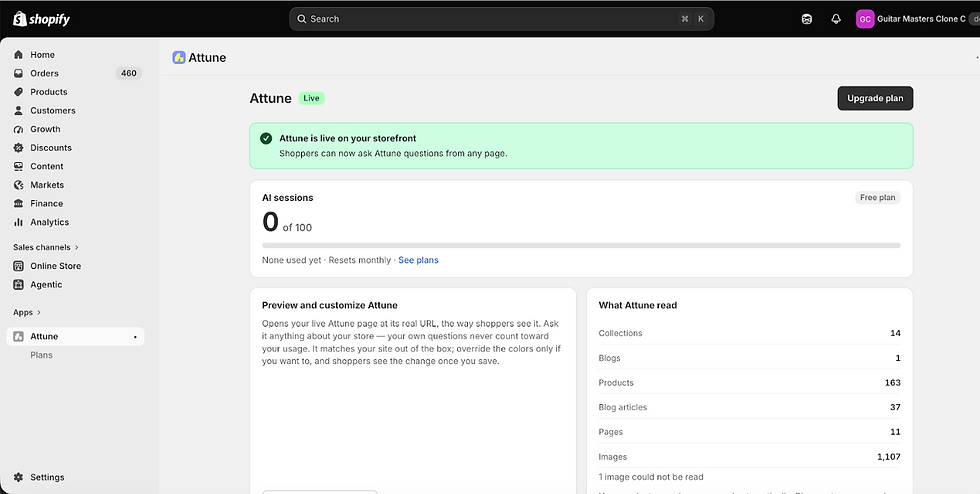
Once the indexing is finished, your AI assistant is ready, but not visible to your customers. Click Continue to get to the app’s main page.

The app main page will open.

The main page includes the follow sections:
1. The data Attune has read. Product data is automatically synced on changes and additions, and content is synced every 24 hours. If anything fails, Attune will automatically retry.
2. Your monthly usage. Counted in AI sessions, and your plan’s quota. Click “See plans” to upgrade.
3. Preview and customize. Try the AI with real questions, for free. Customize the style of the AI answers page.
4. Add to storefront. Make Attune visible to your customers in the storefront by enabling it in the Shopify theme editor.
3. Your first preview
From the app dashboard, you preview with real questios using your own products, in your own colours and fonts. Click on “Preview and Customize”. This opens your store’s dedicated AI answers page.
Note: If your store is password protected, you may get redirected to the store homepage. Enter the password, and click on Preview from the Attune app again.
At this time, nothing is live on your storefront yet. The preview is yours only to see, and using it never counts toward your usage.
Go ahead and try to ask a question and have a conversation with multiple turns. The AI can help with anything your shop sells, answer from content on your blog and pages, and combine the knowledge from both to answer. It can help to filter by prices, colors, or any other meta field or variant types, and answer questions on specific products.
On each question, the page refreshes with the new answer. Each answer has its own unique URL, and you can browse back and forth just like any other web page.
4. Customize the design
Attune automatically picks a visual style that suits your site theme - you can switch it from the preview.
Using the Customize side panel you can customize it and see its effect on what you just asked. The changes are not saved yet - Click “Save” to save the changes.
On every change to the theme colors, or a theme change, Attune automatically updates its colors.
How to customize-
Ask the AI a question
-
In the Design panel, select a color variable, and set the color for it.
Color changes affect multiple areas in the answers and the input’s design, try more than one question to see the full changes. -
View the result.
-
Click “Save”, or make additional changes.
-
Click “Get from theme” to return to your store
Once you customized the Attune design, it will override any design choice taken from the theme.

5. Add Attune to your storefront
Open Add to storefront in the app dashboard, and follow the instructions. Click on “Open theme editor” - Your theme editor will be opened, already with the Attune App Embed enabled. You will be able to see the AI floating input already in the editor’s preview. Click Save to publish and let your customer use the AI.

After you save the theme, when you return to the app page you will see that it is live on your store front. You can still preview and customize, no need to add to the storefront again.
-
Billing and usage
What counts as a billable session?
An engaged AI session: A session in which there was atleast one query submitted by the shopper to the AI. A session lives in one browser tab, and finished after 30 minutes of inactivity.
What that means in practice:-
A customer can use the AI for as many turns and conversations and it will count as one AI session. A session has to be in the same browser tab, and is ended only after a 30m inactivity.
-
An input that renders but is never used is not billed. If a shopper scrolls past the Floating Input without touching it, that costs you nothing.
-
Your own testing is never billed. The dashboard preview doesn't count, no matter how much you use it.
What happens when I reach my plan's limit?
As soon as you are out of usage, the input will not be visible to your customers. Nothing breaks and you are never charged.
Attune stops serving new sessions until the next billing cycle.
You can view your usage in the app’s dashboard page, and upgrade to a plan that suites you.
As soon as you have more usage quota, the floating input will return to the storefront, without any action needed from you.How am I charged?
Through Shopify. Attune charges appear on your normal Shopify invoice.
The AI page
Why is the AI page at /apps/ai and not in my Pages list?
Because Attune serves it directly rather than creating a page in your admin.
-
It still looks like your store. Shopify renders it inside your theme's layout, so your header, footer and any other app embeds are all there.
-
It works on any theme
How do I remove the "Built by Attune" badge?
Move to any paid plan. The badge appears on Free-plan storefront surfaces only, and it disappears on the next render after you upgrade
Your data
What data leaves my store?
From your store, to build the AI. Your products and collections, your pages and blog posts, your shop policies, your theme's design, and order values and line items. Order data does not include customer names, email addresses, postal addresses or payment details.
From your shoppers, when they use the assistant. What a shopper types goes to the AI model provider that generates the reply. That provider is contractually barred from using your shoppers' conversations to train or improve its models. Attune also stores a first-party identifier in the shopper's browser so a conversation holds together and so you can see which purchases followed a session — and that identifier is only set if the shopper has consented, through your store's own consent settings. Without consent, the assistant still works; the measurement simply doesn't happen.
The full detail, including how long each kind of data is kept, is in the Privacy Policy.Do my shoppers know they're talking to an AI?
Yes. Every Attune surface carries a clear AI indication, shown before the first interaction. It stays there whatever you name the assistant.
Control
How do I turn everything off?
If you want your customers to stop seeing the floating AI input:
-
Go to the Shopify dashboard, select Online Store on the left navigation and click “Edit Theme”.
-
On the top bar, on the left, click the “App embeds” icon.
-
On the left panel, search for Attune, and turn the toggle switch to Off.
-
From this moment, the floating input is not displayed to your site visitors.
-
Visitors can still visit the /ai page if they enter a URL directly, or if the go back to a previous conversation they had in their browsing history, and continue to chat from there.
If you want to completely uninstall Attune:
-
Go to the Shopify dashboard
-
Enter the Attune app page from the navigation or the search
-
Click on the 3 dots on the top right corner
-
Click “Uninstall”
-
Fillout the feedback form
-
Click Uninstall
-
From this moment, your data is kept for 48 hours, incase you want to reinstall quickly.
Do I need a developer?
No. Installing, going live and configuring Attune need no code, for the supported sites.
Will it match my brand?
It reads your active theme at install and applies your colours, fonts automatically, then picks a visual style that suits your catalog. Everything is adjustable from the dashboard under Preview and Customize.
What languages does it support?
English only in this version.
How can I hide the floating input from my storefront?
If you just want Attune to stop appearing on your storefront, go to the Shopify thene editor, click the App embeds icon on the top left, look for Attune and toggle it off. This will not uninstall the app, and you can still preview the AI from the app page.
-
I clicked in “Add to storefront” but I can't see it on my store
Work down this list:
-
Is the theme published? If you added the surface to a theme you haven't published, it goes live when
you publish that theme.. -
Did you press Save in the theme editor? If you turned on the app embed toggle of Attune without saving in Shopify, the surface is marked Added but was never actually placed. Run the step again..
Still nothing? Try the AI page at your-store.com/apps/ai. It works without any theme edit — if that page renders and your other surfaces don't, the problem is probably in the theme step.
My theme won't let me add app blocks
Older themes — vintage or Liquid themes that predate Online Store 2.0 are not currently supported..
If you're planning a theme upgrade anyway, moving to a current theme removes the restriction entirely.Products or content are missing from the assistant's answers
-
Give the first sync time. If you have just added or published a product, variant or collection it may take in some cases a minute or two to sync.
-
Check the product is published to the Online Store sales channel. Attune only sees what your storefront sees.
-
Check index status in Apps → Attune. It tells you what has been synced..
-
While products are synced as soon as they are created or on any change, blog articles, pages and policies are synced periodically, and it may take up to 24h for changed to apply. Their firsy sync is trigerred as soon as you install.
If a product is published, the sync has finished, and it still never appears, send us the product URL.
The /apps/ai page 404s or shows another app
-
Another app is already using /apps/ai. This is rare but real — two apps can't share the same proxy path. Go to your store’s settings, choose apps, Attune. Scroll down to App Proxy and change the URL.
-
If You have your own /pages/ai. That's fine — it isn't a conflict. /pages/ai is your page and /apps/ai is Attune's; both work.
The answers don't sound like my store (remove from v1)
-
Tone and category are in the dashboard under Agent configuration. The scan makes a first guess from your content; correcting it changes how the assistant writes.
-
The assistant's name is there too. It defaults to your store's name plus "AI".
-
If answers are thin, the assistant may not have much to work from. It answers from your products, pages, blog posts and policies — stores with detailed product copy and buying guides get noticeably better answers.
The colours are wrong
Go to the Attune app oage in Shopify dashboard. Click “Preview and customize”, and then “Customize” on the top left. Here you can customize the colors.
If detection got it wrong, set the colours by hand in the same place; Don’t forget to click Save when you are satisfied with the selection.
Whenever you change the colors of your theme, Attune reads them again.
If you customized the colors manually in Attune, those colors will always override the theme colors, even on theme changes.
If you have several themes, Attune always reads the selected published theme when it is published and updates the styles it uses.
I've hit my usage limit
The AI stops serving new sessions until your next billing month. Your customers will not see the floating input outside of the dedicated full page. They can still view past conversations.
Upgrade from Apps → Attune to resume immediately.
Still stuck
Email us at attune-support@wix.com with your .myshopify.com address, a description of the problem, and the page URL if the issue relates to a specific AI answer.
-
Turning Attune off without uninstalling
If you just want Attune to stop appearing on your storefront, go to the Shopify thene editor, click the App embeds icon on the top left, look for Attune and toggle it off.
Your visitors will not see the floating input, and can only access the full AI page directly (if they have the URL from a previous conversation)
Your setup is kept, and switching it back on restores everything instantly.Uninstalling
In your Shopify admin, go to Apps, find Attune, and choose Uninstall.
What happens immediately-
Attune stops reading your store and stops serving answers.
-
Every Attune input stops rendering on your storefront.
-
Billing stops.
What we keep, and for how long
Uninstalling doesn't erase everything on the spot. We mark your store as uninstalled, stop processing it, and then delete your data after 48h (triggered by Shopify) - so that a reinstall shortly afterwards doesn't lose your setup, and so we can meet our record-keeping obligations.
Reinstalling
Install Attune again from the Shopify App Store any time. If you come back before your data has been purged, your previous setup may still be there. If it has been purged, you start fresh — reinstalling is a clean setup, not a broken one.
-